Release Notes

What’s new in Cue

Every release, with the details that matter.

v1.5.26Build 2.0.26 ↗

Cue 1.5.26: A Sidebar That Gets Out of the Way

A sidebar that stays out of the way, walkthroughs that set features up for you, a model picker that fits on one screen, and dictation that pastes sooner.

Cue 1.5.26 is about getting out of your way. The window is quieter, new features show you how they work and set themselves up while they do, choosing a model takes one look, and your words land sooner after you let go of the key.
A dark desk seen from above: a slim tray of shapes with one orange piece at the top, beside a stack of blank cards and a pen

A sidebar that gets out of the way

The sidebar is now a thin strip of icons on the left: Home, Chat, Notes, Meetings and Dictation. Rest the pointer on an icon and its list slides out over the page; move away and it goes. Click the toggle, or press ⌘B, to keep a list open. Nothing else opens or closes it, so the page you are reading never jumps.

Rest on a note or a meeting in a list and a small card shows how it begins. A meeting shows its summary, so you can tell calls apart without opening them.

Learn a feature by using it

When there is a feature you have not tried, Cue now says so in a short invite at the top of its page: on Meetings, Notes, Edits and Chat, and now and then on Home. Show me opens a walkthrough, and its buttons do the real thing. On Meetings you allow screen recording and choose how a recording starts. On Chat you pick whether it runs on Cue or on the Claude Code or Codex already on your Mac. Next time hides an invite for three days. The second time, for good.

A model picker that fits

The model list in Chat was taller than some windows and said more than it needed to. Now the top row is tabs for what you actually have: Cue and Your keys always, Claude Code and Codex when they are installed. Thinking is one row with a small slider. Auto is the first choice under Cue, and once picked it lets you lean towards lower cost or higher quality. Every model has one line saying what it is for, a long list shows its first few with More models below, and the picker never grows past the room above the chat box.

Your words land sooner

With Cue Cloud cleaning up your words, the text now lands about 0.9 seconds after you let go of the key on average, down from about 1.4, and without the occasional half-second stall. The sweep you see before the paste is shorter too, 0.7 seconds instead of 1.2, so the paste no longer looks like it is waiting.

Also in this release

  • The windows Cue works in behind the scenes stay signed in through a long sleep. They used to lose the connection and fail every Cue Cloud request until Cue restarted.
  • One Keep history rule for dictations and screen memory. Cue counts what a change would delete and asks first.
  • Big histories feel light: History loads 50 rows at a time, and Home, chats, the notes list and saving a note no longer re-read everything.
  • In full screen, Cue's menu bar behaves, and opening Edit inside Cue no longer jumps to another Space.
  • A very large request now says it is too big to send, instead of saying you are out of credits, and results from connected apps such as Gmail are capped.
  • Everyone invited to a meeting links to their page, and project pickers list every project, not only the newest 50.

v1.5.25Build 2.0.25 ↗

Cue 1.5.25: Meetings Tag Themselves

When a meeting ends, Cue adds the tags that fit from sixteen ready-made ones. A person now has a page of their own, and quitting in the middle of a call no longer loses it.

Three paper note cards on a dark table, each with small paper tags, one of the tags orange

Cue 1.5.25 adds starter tags, controls for automatic tagging and an option to create a tag when nothing fits. A person also gets a page of their own, and quitting in the middle of a call no longer cuts it off.

Meetings tag themselves

When a recording ends, Cue reads the meeting's summary and adds up to three tags that fit. A call where you agreed a price with a customer gets customer-call and decision. A sprint planning gets planning. Ten minutes of thinking out loud on your own gets solo.

  • Sixteen tags to start with. 1-on-1, advisor, brainstorm, customer-call, decision, hiring, intro, investor, learning, partner, personal, planning, review, solo, team-sync and user-research. A vault without its own tags gets them once. Delete one and it stays deleted.
  • Each tag says when it applies. Cue only uses tags that have that line, so a tag of your own joins in the moment you give it one.
  • When nothing fits, Cue can make a tag, with a line saying which meetings it is for, and marks it "by Cue". Remove it and Cue will not make it again.
  • Two switches in Settings › Meetings: Auto-Tag, and under it Make New Tags.

The tag manager now edits a tag's name, colour and description in one place. Renaming a tag keeps its colour and description, and a stray tag such as #42 or a half-typed #onb no longer turns up on your notes.

A page for every person

Open someone from Meetings › People and you get a page, not a document:

  • Who they are. Their name, email and website, how many meetings you have had and when you last met.
  • Voice. Whether Cue knows their voice from the meetings where you named them. Rename the person and the voice goes with them.
  • About. A box for your own notes on them. What you type is saved in their note, in your vault, as plain text.
  • Meetings. Every meeting with them, newest first, each naming who else was there.

The meetings list is the history, so the page no longer shows a Timeline. If you want the whole note behind the page, Open full note in the menu shows it.

Quitting keeps your meeting

Pressing ⌘Q, or Quit in the menu bar, in the middle of a call used to cut the recording off. It came back at the next launch as a "recovered" meeting. Now Cue stops the recording, saves the note with the full transcript, and then closes. It takes a fraction of a second.

Also in this release

  • ElevenLabs with your own key. A dictionary word longer than 20 letters used to end the whole dictation. That word is now skipped and the dictation goes through.
  • Fewer wrong hints. The words Cue picks up from the text around your cursor are plain names only, never code words such as useState.
  • "Auto-title voice notes with AI" stays off when you switch it off.
  • The People page says when it cannot load your people, instead of looking empty.

v1.5.24Build 2.0.24 ↗

Cue 1.5.24: Calls Record by Themselves Again

Choose Always, Trusted, Ask or Off for the calls Cue notices. Trusted apps and websites record without a card, and a recording ends 30 seconds after the call does.

In 1.5.23 we made Cue ask before every meeting recording. A card came up, and nothing was recorded until you pressed Record. In 1.5.24 Cue can start by itself again, and you choose which calls it records.

Four choices

Settings › Meetings has a row called "Calls Cue notices". It now offers four choices:

  • Always. A call records without a card.
  • Trusted. The apps and websites you switch on record without a card. Everything else gets the card.
  • Ask. The card from 1.5.23. Nothing records until you press Record. A new install starts here.
  • Off. Cue does not watch for calls.

Your meeting shortcut starts a recording at once, whatever you choose here.

If you used Always or Selective before 1.5.23, that update moved you to Ask. Pick your choice again in Settings › Meetings.

A trusted list

Think about what you would trust to record without asking. It is not "everything my browser opens". It is Google Meet. So the trusted list holds apps and websites, and no browsers.

  • Apps. Zoom, Microsoft Teams, Webex and FaceTime start switched on.
  • Websites. Google Meet, Zoom, Teams and Webex on the web start switched on, in any browser.
  • Chat apps start off. Slack, Discord and WhatsApp also take the microphone for voice notes, so Cue asks about them until you say otherwise.

You can add any app. You can add any website by typing its address, such as riverside.fm. A website you add yourself works where Cue can read the page's address, which today is Chrome and Dia.

Something that is switched off is not ignored. Cue asks about it, with the card.

A warning, not a surprise

The old Always recorded anything that touched the microphone, so a voice note or a web page testing your mic could become a meeting.

Always now records what looks like a call: a call app, or a browser tab Cue recognises as Meet, Zoom, Teams or Webex. When it is not sure, a card says "Recording starts in 10 seconds" with two buttons, Record now and Don't record. Leave it alone and the recording starts.

The recording ends when the call does

A recording that began from a noticed call now stops 30 seconds after the call ends. It used to be 3 seconds, which cut a call in two whenever the line dropped and came back. Rejoin within 30 seconds and it stays one recording. A delay you chose yourself is kept.

The wait was also unreliable. It ran in a hidden part of the app that macOS puts to sleep, so a recording could stop late, or stop at the very moment you rejoined. Cue now counts the wait where it cannot be put to sleep.

See Cue 1.5.23 for calendar reminders, website controls and the fixes for Claude Code and Codex.


v1.5.23Build 2.0.23 ↗

Cue 1.5.23: Meeting Prompts and Connected Agents

Calendar reminders can join and record, meeting cards recognize websites, and Claude Code and Codex can search your Cue notes.

Cue 1.5.23 adds clearer meeting prompts and fixes the tools that connect your notes to Claude Code and Codex.

A card before your meeting

One minute before a calendar meeting with a call link, a card names the meeting and offers Join and record, Join only or Skip this meeting. Join only keeps Cue quiet until that meeting ends. Turn these reminders off with Scheduled meetings in Settings › Meetings.

For calls noticed through microphone activity, this release asks before recording. Ignoring the card leaves nothing recorded. Cue 1.5.24 adds Always and Trusted choices for people who want automatic recording.

Quiet one website

Browser meeting cards name the website, such as meet.google.com. Snooze site and Never ask apply to that website, so silencing one site does not silence the whole browser. The quiet list in Settings holds both apps and websites.

Claude Code and Codex can use Cue's tools

The tools server bundled inside earlier releases could fail at startup, leaving both agents unable to search your notes and meetings. This release fixes that packaging and finds the tools when Cue opens from Finder.

Settings › MCP & CLI shows where each agent was found and has a Test button that checks a real turn, sign-in and whether Cue's tools loaded. Codex is found in its new location, gets its own model list and can continue an earlier chat.

Replies keep running

Leave a chat while it is replying and it continues, saves the answer and shows its progress in the sidebar. Two chats can reply at once.

Changing the engine, model or Ask and Act takes effect on the next message. Switching from Cue Cloud to your own agent no longer keeps using Cue credits.

Also in this release

  • Returning to a running chat no longer fails with “a turn is already running”.
  • Stopping a reply saves it once.
  • Attached skills survive an earlier engine switch.
  • Notes returned to agents include their real update dates and clean summaries.

v1.5.22Build 2.0.22 ↗

Cue 1.5.22: No Wait After a Break

The on-device voice model stays loaded, the meeting pill follows your voice, and you can switch between Cloud, On-device and Private from the menu bar.

You come back from lunch, press your talk key, and wait. And wait. The on-device voice model had been put away while you were gone, and it took 20 to 25 seconds to load again. In 1.5.22 it stays loaded.

Steam rising from a coffee cup turns into a sound wave that flows into a microphone

The voice model stays ready

Cue used to unload the on-device model after three hours without a dictation. The idea was to give memory back to your Mac.

We measured what that really saved. macOS already takes back the memory the model uses within seconds of your last dictation. A model that sits idle holds only 20 to 60 MB. So unloading it saved almost nothing and cost you a long wait.

Cue no longer unloads it. The Unload Model setting now applies only to the older models that run on the processor.

Two smaller things on the same theme. If you start talking before the model is ready, Cue now loads the part that writes your text first. It used to start with the part that shows the live preview, which that dictation cannot use. And the card you see in that moment says what is going on: "Model is warming up. Keep talking. It will take longer for the first dictation."

A better meeting pill

The pill is the small bar that sits on your screen while a meeting records.

  • Bars that follow your voice. The bars are now Cue orange. They used to stop moving after a second whenever there was steady sound in the room, such as the call playing through your speakers, because any sound above a very low level counted as full height. They now measure how far your voice rises above the background.
  • The card follows the pill. Drag the pill and its note card folds away, then opens again beside the pill where you drop it. It used to stay behind.
  • The card opens at once. The first click on the pill took about 1.5 seconds to show the card. It now opens as soon as it has loaded.
  • One height. The pill is about 10% taller and no longer changes height when your pointer reaches it.

Dictation in the menu bar

The Private Mode checkbox in the menu bar is now a "Dictation" menu with three choices:

  • Cloud. Your voice is written out in the cloud.
  • On-device (Cleanup). Your voice stays on the Mac. Tidying the text may use the cloud.
  • On-device (Private). Dictation and meetings run on your Mac, with on-device cleanup or no cleanup. Analytics is off.

If you pick an on-device choice with no model downloaded, Cue opens the Models page instead of switching to an engine that cannot run.

Shortcuts that name the side

The orb used to show "⌥" for your talk key. Cue's default keys are on the right side of the keyboard, so people pressed the left one and nothing happened. The orb now says "Right ⌥" to dictate and "R⌘ + N" for a note.

A calmer chat

When Cue looks things up on the way to an answer, every step used to show in full above the reply. They now fold into one line that names the step running right now, such as "Searched notes · launch date". Click it to see every step. A step that needs your approval still opens by itself.

Also in this release

  • The four cards on the Dictation page (History, Edits, Modes, Dictionary) look like buttons. Each shows how much is inside, shows "Open" and a small preview when you point at it, and presses in when clicked.
  • Coming up on the Meetings page and the Calendar tab show the meetings they last loaded straight away, then refresh. They used to say "Loading upcoming meetings…" every time.
  • The engine switcher in the footer is titled Dictation and shows the Meetings engine underneath. It no longer says "Not loaded" for a model that is already warm.
  • A menu bar item with no translation in your language shows in English instead of as a blank row.

v1.5.21Build 2.0.21 ↗

Cue 1.5.21: A Sharper English Model

Parakeet Unified English hears more words right and writes its own punctuation, and Cue no longer freezes when iCloud has moved your notes to the cloud.

Cue 1.5.21 adds a new on-device voice model for English, and fixes a freeze that hit people who keep their notes in iCloud Drive.

Parakeet Unified English

Parakeet Unified English is a new voice model from NVIDIA. It runs on your Mac's Neural Engine, so your voice stays on the Mac. It types as you speak and writes its own punctuation.

We ran it on 318 real dictations next to two models Cue already had. It got 7.4% of words wrong. Nemotron 3.5 English got 8.4% wrong and Parakeet V3 got 7.6% wrong. It also ends sentences with a period, which Nemotron English never does, and it types far fewer "um"s. The wait after you stop talking is the same.

Pick it on the Models page under NVIDIA.

If you are new, on an Apple Silicon Mac, and choose English during setup, you now get this model first. If you already chose a model, Cue keeps your choice. Intel Macs and every other language are unchanged.

No more iCloud freezes

If your Cue folder lives in iCloud Drive and "Optimize Mac Storage" is on, macOS can keep only a placeholder of a note on your Mac. Reading that note means waiting for it to download.

Cue used to read every note on the same thread that draws its windows. With about a thousand such notes, the app froze for over an hour.

Notes are now read in the background. Cue also asks iCloud for all the missing files at once, so they download side by side instead of one after another.

Loading, not missing

While notes are still arriving, the sidebar, All notes and Meetings say "Loading notes…" instead of "No notes yet". Your notes were never gone. Cue just said so too early.


v1.5.20Build 2.0.20 ↗

Cue 1.5.20: Your Last Words Make It In

Cloud dictation waits for your final words, a very short press no longer breaks the next dictation, Fn stays your talk key, and new users get a checklist that earns credits.

You finish a sentence, let go of the key, and the last few words never show up. In 1.5.20 Cue waits for them.

Cloud dictation keeps its last words

When you stopped, Cue finished as soon as the cloud service went quiet. But quiet did not always mean done. The service could still be working through audio Cue had already sent, so the last clause arrived a moment too late and was lost.

Cue now waits while the service is behind, and finishes when the service itself says it is done. That takes a quarter to half a second after you stop.

One more case is fixed. Sometimes the service shows a few words as a preview and then takes them back. Cue used to paste those words as if they were confirmed. It now clears them.

A quick press no longer breaks the next one

A very short press could leave the next dictation with a dead microphone. The stop reached the dictation engine before the start did. The late start then opened a cloud connection for a dictation that had already ended, and when that connection closed about 12 seconds later, it shut off the microphone of whatever you were dictating by then.

The engine now drops a start that arrives after its own stop.

Fn stays your talk key

If you chose Fn as your talk key, Cue kept switching it back to Right Option. A settings clean-up that runs every time settings are read mistook Fn for an old shortcut. It no longer does.

A checklist for your first two weeks

New users get a Getting started card on Home with five things to try: say your first words, dictate into another app, record a meeting, rewrite text with your voice, and connect your AI.

Each row ticks itself from what really happened, never from a click. A signed-in account earns 5 or 10 credits per task, 40 in all, each paid once. When all five are done the card folds itself away.

Also in this release

  • New accounts get their 50 starting credits when they sign in. They used to get 10 until the last setup screen, where the practice could run out.
  • The practice dictation during setup starts with one press and stops with the next, whatever the length of the press. A slow first press used to stop on release and type nothing.
  • The practice screens show numbered steps with the current one lit.
  • The language screen during setup asks only what you speak. Cue picks the voice model for those languages on your Mac.
  • Choosing a hands-free key saves. Moving the talk key and the hands-free key together used to be rejected.

v1.5.19Build 2.0.19 ↗

Cue 1.5.19: See the Rewrite Before It Lands

Edit with AI in your notes shows the change as a tracked edit you accept or discard, Edit mode pastes over the right text every time, and memory stays flat.

Ask Cue to rewrite a paragraph in one of your notes, and until now the new text simply replaced the old one while you watched. In 1.5.19 you see the change first, decide, and only then does the note change.

A page of text with one line crossed out and a new line glowing beside it

Edit with AI, reviewed first

Select text in a note and the toolbar now reads "Edit with AI". Pick a saved prompt, or type your own instruction in the box at the bottom of the menu. While the model works, your text stays highlighted and a small pill under it shows progress, with a Stop button.

When the rewrite arrives, the note is still untouched. A small change shows as a tracked edit: the words that go are struck through, the words that come sit beside them. A rewrite that reshapes the text, into bullets say, shows the whole original struck through with the new version underneath. Press Enter to keep it, Escape to drop it. Keeping it is one step, so a single undo brings the original back, and a list comes back as a real list.

Rewrites you keep are recorded in the Edits tab, so you can find them later.

Apply pastes over the right text

Edit mode's Apply sometimes replaced your selection and sometimes added the rewrite next to it. Some apps report the selection a moment late; Cue read it too early, decided it had collapsed, and shrank it to nothing before pasting. Cue now reads the selection back before it pastes. When it cannot be sure, it leaves the text on the clipboard and tells you, rather than pasting blind.

Memory stays flat

The on-device transcription helper kept a copy of every audio frame it had ever read, about two thirds of a megabyte for every second of dictation. A day of use took it from around 200 MB to over 400. It now frees each frame as it goes and stays where it started.

Also in this release

  • Voice instructions in the Edit panel work. Every attempt used to come back empty. Speak, release Enter, and it runs. The empty box has a dictation mic too.
  • The Edit panel opens without a 1.5 second wait.
  • The download bar at the bottom of the window fills from left to right. It used to shimmer like a spinner at every percentage.
  • The Edit panel's search field reads as an input, and frame changes are quicker.

v1.5.18Build 2.0.18 ↗

Cue 1.5.18: Meetings That Survive a Wi-Fi Drop

Cloud meetings catch up after the internet drops, notes rebuild themselves, and everything that landed since Cue 1.5.

The internet drops in the middle of a call. It comes back half a minute later. Until now, a cloud meeting in Cue could lose most of what was said after that moment. In 1.5.18 it does not.

A stream of sound flowing past a Wi-Fi symbol that goes dark and comes back

Meetings catch up after a drop

While the connection is gone, Cue keeps recording and holds the audio. When it returns, Cue replays what it held at three times real speed and then carries on live, so a 90 second drop is whole again about 45 seconds later.

The replay used to be paced by a timer that macOS slows down in a window nobody sees. It ran at a fifth of real speed, never caught up, and the rest of the meeting was thinned out behind it. It is now paced by the clock and by the audio itself.

Ending the call right after a glitch is safe too. Cue sends everything it is still holding before it closes the meeting, so the transcript runs to the end of the recording. Stop takes a few seconds longer in that one case, and is as quick as ever otherwise.

Notes that heal themselves

Your notes are markdown files. The list you see in Cue comes from an index built from those files. If that index went missing or became unreadable, for example after iCloud moved the Documents folder, Cue could show an empty app until a restart.

Cue now sets the broken index aside and rebuilds it from your files, while running or at launch. Your notes were never touched. The one thing a rebuild forgets is which Inbox items you had already opened.

If the vault folder itself was replaced, Cue tells you with a card instead of quietly starting an empty vault on top of it.

Out of credits, two ways out

When a Cue Cloud chat runs out of credits, the turn ends on a calm card: add credits or upgrade, or switch to your own API key and keep chatting. It used to be a red box that said "Payment Required". If it is your own provider that is out of balance, you still see their message, not ours.

Since Cue 1.5

A lot has shipped in small releases since the 1.5 announcement. The short version:

  • Echo cancellation for meetings. On speakers, the other side is no longer transcribed twice. On by default.
  • Voices you can name. Name a voice once and Cue recognises it next time, on this Mac only. Every person is a note, with their meetings by day.
  • Labels that say what they are. Microphone and System audio while recording, numbered when voices can be told apart live. Names arrive after Stop.
  • Private Mode is one switch. On: dictation and meetings run on-device and analytics is off. Off: your own settings, exactly as you left them.
  • Meetings have their own language, and multi-language is the default for cloud meetings.
  • Agents find the right note first. Cue's MCP server ranks results, returns note ids, and can follow the links around a note. Every row in index.md carries a one-line summary.
  • Links and tags. [[wikilinks]] render and open the note they name, tags have colours and descriptions, and an Inbox collects what agents write for you.
  • Notes mode covers documents. Google Docs, Word and Pages get headings, lists and paragraph breaks, and Email mode is on by default.

Also in this release

  • Usage data carries your account id while you are signed in, the same as crash reports since 1.5.17: never your email or name, only while the analytics toggle is on, and never in Private Mode. It tells us which accounts stopped using Cue, which a random install id could not.
  • New vaults get a shorter AGENTS.md that tells an agent what to do first: read index.md.
  • A note that sits in a subfolder of the vault opens, renames and deletes like any other.
  • Errors from the transcription service no longer write your dictionary words into the log.

v1.5.17Build 2.0.17 ↗

Cue 1.5.17: Clearer Voices in Meetings

Echo cancellation reduces duplicate speech, named voices carry across meetings on this Mac, and Private Mode becomes one switch.

When a call plays through your speakers, its sound also reaches your microphone. Cue 1.5.17 removes that echo so the other side is not transcribed twice.

Echo cancellation for meetings

Echo cancellation is on by default. It removes the copy of the call coming through your microphone while the other side is audible and leaves your voice alone the rest of the time. You can turn it off in Settings › Meetings. Headphones users see no change.

Voices you can name

Name someone in a transcript and Cue keeps their voice print on this Mac. Later meetings can use that name again. A small sparkle marks a name matched from a voice, and you can click to correct it.

A person's note shows how much Cue has heard of their voice and offers Forget. While recording, labels say Microphone and System audio, with numbers when voices can be separated live. Names arrive after Stop, where Cue can identify them.

One Private Mode switch

Turn Private Mode on and dictation and meetings run on-device. Cleanup runs on-device or is skipped, and analytics turns off. Turn it off and your previous settings return. Settings, Home, the footer and the menu bar use the same switch.

Also in this release

  • Cloud meetings get the after-meeting voice pass too.
  • Meetings no longer mute the rest of your Mac's audio.
  • Stop returns while the voice pass continues in the background.
  • Crash reports carry your account id while analytics is on, with no email or name.

v1.5.16Build 2.0.16 ↗

Cue 1.5.16: Agents Follow Your Notes

Ranked search and links help agents find related notes, while the microphone recovers after sleep and long multilingual dictations keep their ending.

Your notes already connect people, meetings and ideas. Cue 1.5.16 lets agents follow those connections too.

Glowing note pages connected by lines around a central note

Find the right note first

Cue's MCP server now uses the same ranked search as the app. A title match can lead the results, each result includes its note id, and hyphens in words such as “local-first” no longer exclude the note you were looking for.

Search can also bring in related pages, marked “linked from”. A search about a topic can reach the people named in meetings about it, even when their own pages never mention the topic.

The new get_links tool shows what points to a note and where it points, including the line containing each connection. Meeting attendees count as connections. Private notes stay out of those results.

For agents that read files directly, index.md now carries a one-line summary per note. Private notes show a title only.

Also in this release

  • Finished meetings can pick up to three tags whose descriptions fit their summary.
  • A weekly Inbox note lists unlinked pages, broken links, rarely used tags and possible duplicate people, without changing anything.
  • The microphone works again after the Mac wakes from sleep.
  • Long dictations in Hindi, Tamil and other scripts are no longer cut short by the cleanup output limit.
  • Accents, currency signs and Devanagari work in search again.
  • A rejected API key or exhausted provider balance gets a useful explanation and a way to Settings.

v1.5.15Build 2.0.15 ↗

Cue 1.5.15: People, Tags and Links

People connect to their meetings, notes link to each other, and work written by agents gets its own Inbox.

Cue 1.5.15 gives your notes more ways to connect: to the people you meet, the tags you choose and the other pages they refer to.

A place for the people you meet

People sits beside Calendar on the Meetings page. Each person is a note, with their meetings listed by day. Add a name and an optional email to connect calendar invites and named speakers to the same person.

Click a speaker label in a transcript to say who it is. Finished meetings keep their attendees, so a person's page can find those meetings later.

Tags have a colour and a description, shared across the vault. Rename with undo, check near-duplicates, or click a tag to filter the list.

Type [[ in a note to choose another note. The resulting link opens that page. A Details panel under the title brings people, note details and tags together.

An Inbox for work from agents

Your own notes and work written by Cue or its agents have separate lists. New agent-written notes arrive in the Inbox and leave it when you open them.

Also in this release

  • Saving a note keeps words typed just before you switch to another note.
  • Search includes meeting transcripts and summaries.
  • Two copied files with the same note identity remain visible as separate notes.
  • A staged update finishes when you pause, and Cue avoids starting a recording on an app bundle waiting to restart.

v1.5.14Build 2.0.14 ↗

Cue 1.5.14: Open Chats in New Tabs

Open a chat beside what you are reading, with the same tab action used for notes and meetings.

The menu beside a chat in the sidebar now includes Open in new tab. Your current chat stays where it is, and the selected conversation opens beside it.

If that conversation is already open, Cue focuses its existing tab instead of creating another copy.


v1.5.13Build 2.0.13 ↗

Cue 1.5.13: Better Punctuation, More Languages

Meetings get their own language setting, emails and documents get useful formatting, and dictation cleanup keeps more of your meaning.

Cue 1.5.13 improves what happens between saying a sentence and seeing it land.

Meetings have their own language

Cloud meetings no longer borrow the language used for dictation. They default to multi-language recognition, so a meeting can move between supported languages without leaving holes in the transcript. Use the Language row on the meeting card to choose a specific language.

Emails and documents keep their shape

Email mode is on by default for Gmail, Mail and Outlook. Your greeting, paragraphs and sign-off stay in your words, with formatting suited to an email.

Notes mode now also covers Google Docs, Microsoft Word and Pages, with headings, lists and paragraph breaks.

Cleanup that keeps your words

Cleanup now adds sentence endings more reliably, fixes small grammar slips, writes spoken numbers as digits and follows “scratch that” corrections. Names and mixed-language phrasing stay intact. Existing custom prompts and modes are preserved.

Also in this release

  • Settings use shorter descriptions and group the shortcuts together.
  • The MCP & CLI tab shows where Cue is registered and detects Claude Code and Codex on your Mac.
  • Virtual audio devices stay out of the microphone picker unless you already selected one.

v1.5.12Build 2.0.12 ↗

Cue 1.5.12: Meetings Name Themselves Again

Meeting titles and summaries finish even when you are on another page, and recording prompts focus on real calls.

Meetings were finishing with a time in place of a useful name. Cue 1.5.12 fixes the title generator and makes the after-meeting work run wherever you are in the app.

Finish the meeting, keep working

Cue summarizes, names and exports a meeting after recording ends, even if you have moved to Home or Chat. You no longer need to keep its note open. An open note also shows its new name immediately.

Prompts for real calls

In ask-first mode, Cue now shows a recording card for known meeting apps or a browser call it can verify from the tab or a calendar link. A browser card names the meeting platform, such as Google Meet, instead of just Google Chrome.

Also in this release

  • Ending a recording no longer brings up another meeting prompt seconds later.
  • Speaker numbers no longer skip a number.
  • A failure to identify speakers carries a useful explanation instead of silently disappearing.

v1.5.11Build 2.0.11 ↗

Cue 1.5.11: Free, Basic and Pro

Three clearer plans, cloud dictation that follows your chosen language, and a quieter reading experience.

Cue 1.5.11 introduces Free, Basic and Pro in Settings › Plan. Basic and Pro lift the free usage limits, and Pro adds connected apps beyond Calendar. Your own API keys, MCP, CLI connections and transcription modes remain available on every plan.

Dictation follows your language

After setup, cloud dictation uses the language you chose. If you speak a mix of languages, choose Hindi, or leave language detection automatic, it uses multi-language recognition instead.

Easier to read

Titles now use Source Serif 4 at a normal weight, with Geist Sans for interface text and Geist Mono for labels and code. Update cards can include a picture or a clip, and long notes scroll while the image and Got it button stay in place.

Also in this release

  • Cancelling a subscription keeps the plan active through the paid period, then returns it to Free.
  • Monthly credits follow the plan rather than the country where it was purchased.
  • The version shown in Cue now follows each build automatically. The exact build number remains in About.

v1.5.0Build 2.0.10 ↗

Cue 1.5: A Voice-First Workspace

One workspace for dictation, meetings, notes, Chat, and follow-ups.

Cue 1.5 is our biggest update yet. All the work that follows a thought now has somewhere to go. Capture it with dictation, carry it through meetings and notes, ask Cue about it in Chat, and return to the work without rebuilding the story.

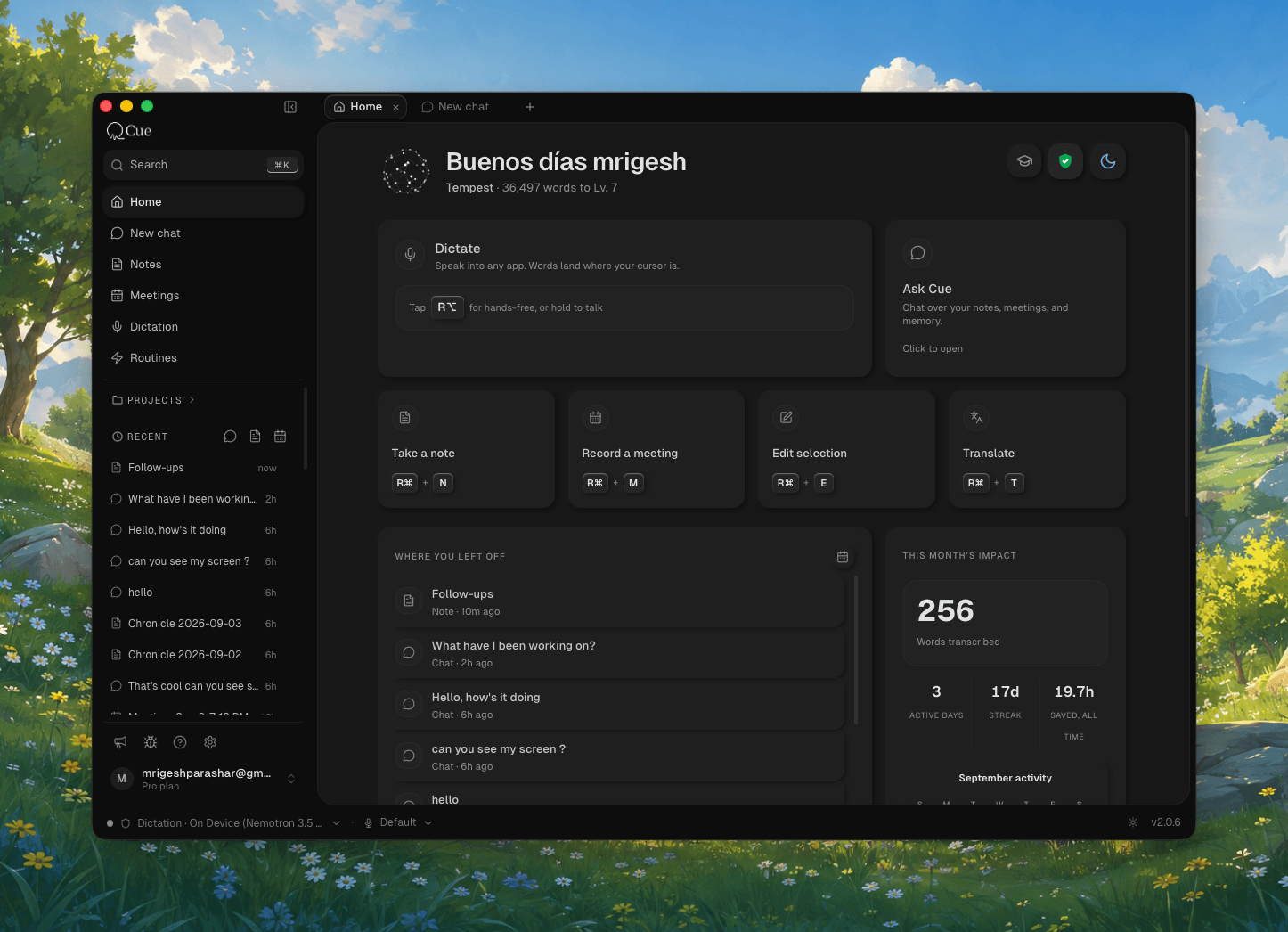
Cue's dark Home workspace showing dictation, notes, meetings, and activity

Chat that stays with the work

Chat can read a file you attach, discover the skills available to it, and work with the notes you have chosen to keep. When a turn runs through Claude Code or Codex, Cue now waits for the CLI to finish, shows the work while it runs, stops cleanly when asked, and delivers the answer instead of falling silent.

Meetings you can trust and revisit

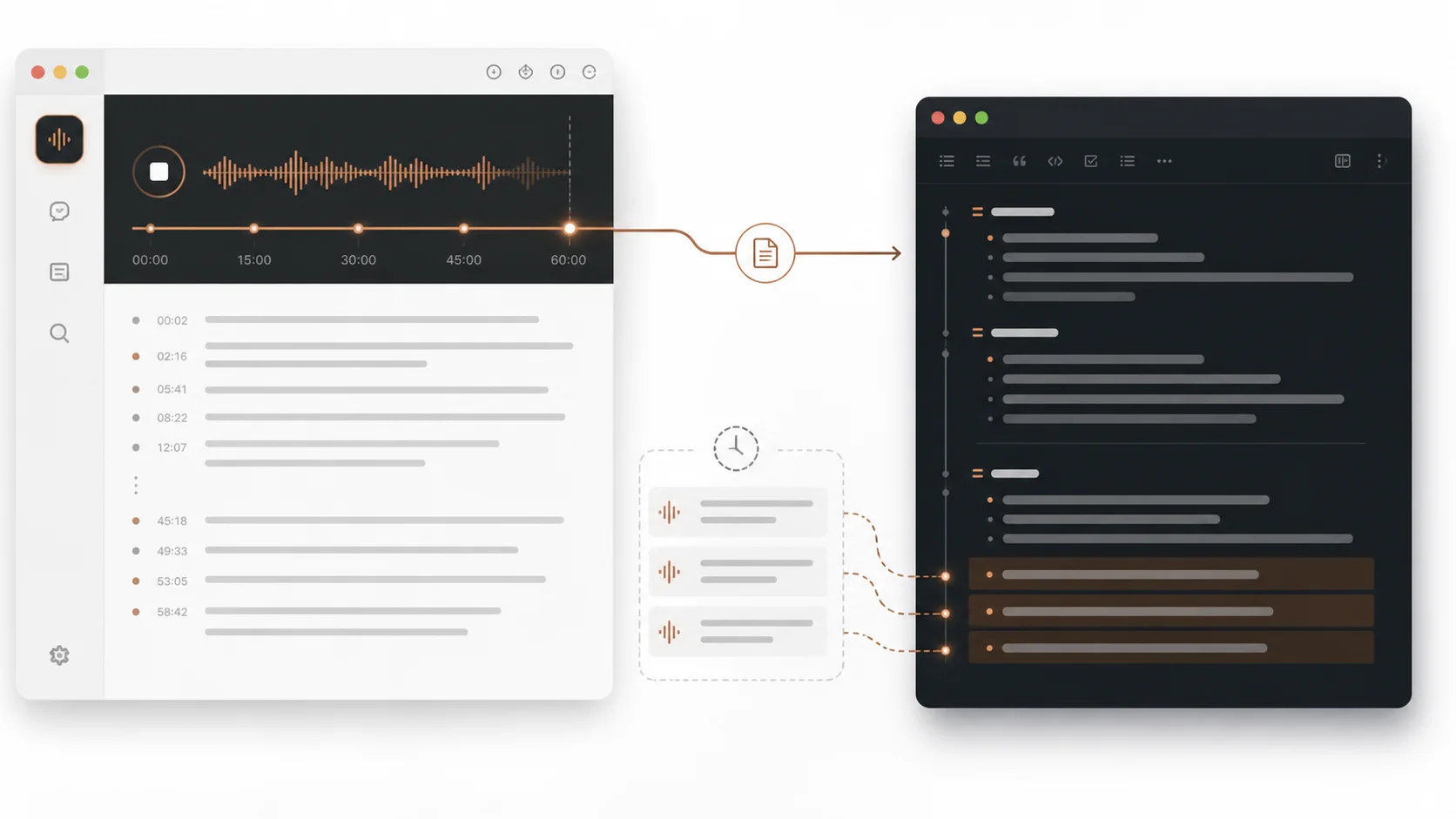
Meetings now take their identity from your calendar, keep one note from the moment recording begins, and rescue late transcript results instead of dropping the ending. You can play the recording from the note and follow along with the transcript.

Name a speaker once and Cue can recognise that voice next time. Cancelling no longer throws a meeting away, and pressing Escape in another app cannot accidentally delete the recording.

One Cue meeting session flowing into one continuous note

Dictation that gets out of your way

The microphone stays ready between dictations, the first word is kept, and text lands sooner after you release the key. Long holds are no longer mistaken for quick taps on a busy Mac, and the live transcript now remains visible while you dictate inside Cue itself.

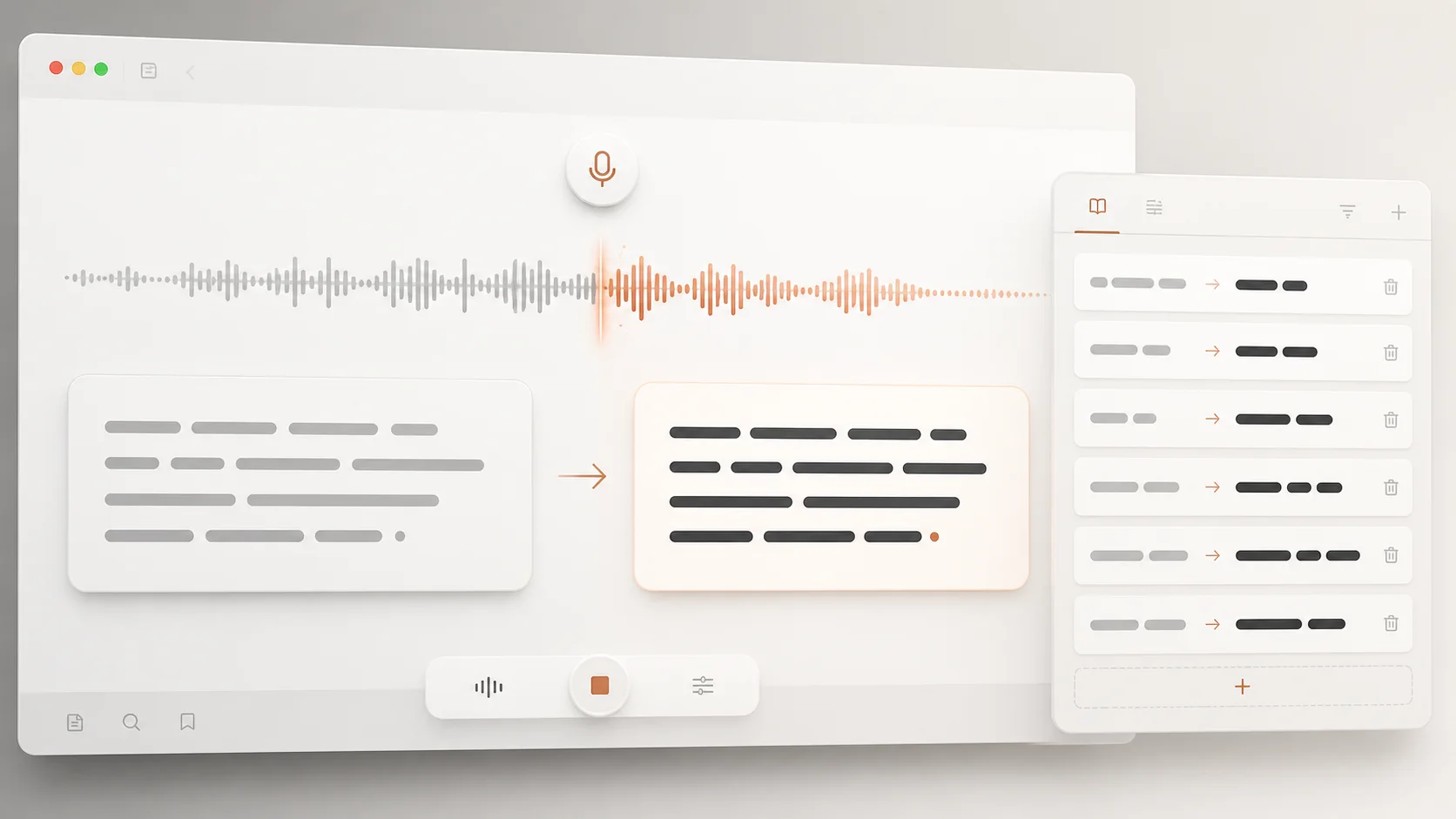
Dictionary Corrections let you teach Cue an exact rule: when you hear one phrase, write the replacement you chose. Names, punctuation, spacing, possessives, accented words, and intentional capitals survive the correction path.

A spoken phrase being transformed by an exact Cue correction rule

A clearer Cue from the first minute

Onboarding now teaches the talk key and act key where you first use them. Each practice happens in a real text field, so the first run proves the same capture-and-paste path Cue uses everywhere else.

Home has its own destination, the idle orb opens into a compact launcher for Cue's main actions, and Notes and Meetings have calmer, more consistent reading surfaces.

Updates that explain themselves

After an update, Cue can show a short What's New card once for that build. You can check for updates automatically, from the Cue menu, from the menu bar, or by clicking the version in the footer; the sidebar tells you whether Cue is current, downloading, ready to restart, or needs another try.

Also improved

  • File drops reveal their destination on the first drag.
  • Search gives stronger priority to titles and handles punctuation safely.
  • Light mode uses calmer neutral surfaces and consistent scrollbars.
  • Missing macOS permissions no longer take down the app at startup.
  • Meeting detection ignores system audio daemons and unrelated microphone activity.
  • Focus stays in Cue when you dictate or edit inside Cue's own windows.
  • Crash reports and app logs are more useful while remaining anonymous.

v1.4.0

Cue 1.4: On-Device Dictation, 8x Faster

Cue's offline engine now runs on the Apple Neural Engine. Private just became the fast option.

The Neural Engine changes the math

Every M-series Mac ships with a chip built for exactly this workload, and most apps ignore it. Cue's on-device transcription now runs on the Apple Neural Engine.

  • Around 8x faster than our previous offline engine. Long recordings finalize in a blink instead of a wait.
  • Live words while you speak. Streaming preview stays on, so you see text as you talk even with no internet.
  • Almost no battery cost. The Neural Engine sips power. Your CPU stays free and your fans stay quiet.

Until now, choosing on-device meant trading speed for privacy. That trade is gone. On your Mac, private is the fast option.

Built to not fall over

Fast is worthless if it is flaky, so the new engine got the boring work too:

  • Warm-up on launch, so your first dictation of the day is as fast as your fiftieth.
  • The engine self-heals if it ever gets into a bad state, instead of silently degrading.
  • Cancelling a recording fully clears the buffer. Nothing bleeds into your next dictation.

Milestones, redesigned

Your profile now tells the story of everything you've dictated. Every word counts toward ten voice ranks — starting at Whisper and climbing through Thunder all the way to Vox Machina at one million words.

  • A new profile card with your rank, total words, and a progress bar to the next level.
  • Round, honest thresholds. Ranks land on clean numbers, so you always know how far the next one is.
  • Your stats at a glance — words per minute, top app, daily streak, and typing time saved.

v1.3.3

Cue 1.3.3: Private Mode, Front and Center

Every on-device model is free, no account needed. And pasting no longer touches your clipboard.

Local is free. Full stop.

Every on-device model in Cue is now free, for everyone, with no account. Download the best model your Mac can run and dictate as much as you want. No meter, no time limits, no trial that runs out.

The reasoning is simple: on-device transcription runs on your hardware, so it costs us nothing. Charging for it would be charging you rent on your own Mac.

In Private Mode, nothing ever leaves your machine. Not audio, not text, not analytics about what you said. That is not a policy promise, it is how the app is built.

Cloud transcription is still there when you want maximum accuracy, and it is priced the same honest way: cents per use from a wallet you top up. No subscription. Ever.

Paste without touching your clipboard

Until now, every dictation app on macOS pasted the same way: put text on your clipboard, fake a Cmd+V. Your clipboard manager filled up with fragments of everything you ever said.

Cue now types text directly into the target app. Your clipboard stays exactly as you left it.

Cleanup by Apple Intelligence

On Macs with Apple Intelligence, Cue can now use it for the automatic cleanup pass. On-device, instant, and free, because it runs on your hardware too.

A better first five minutes

Onboarding got a full redesign. It is shorter, it explains the private/cloud choice honestly, and if you quit halfway it resumes where you left off instead of starting over.


v1.3.2

Cue 1.3.2: Hears You, Not the Room

Hush filters out background noise and other voices. Cloud dictation gets automatic failover.

Hush

Coffee shops, open offices, a TV in the next room. Real life is loud, and dictation has always paid the price.

Hush is Cue's new suppression layer. It runs on your Mac, in real time, before audio reaches transcription.

  • Background noise goes away. Keyboards, traffic, espresso machines.
  • Other voices too. The conversation behind you stops leaking into your text.
  • You control the strength. A live slider, from gentle to aggressive, so you can tune it to your room.

Cloud dictation that does not flinch

When you use cloud transcription, Cue no longer depends on a single provider being up.

  • Automatic failover. If the primary provider will not connect, Cue switches to a backup at connection time. You dictate, it works, you never see the switch.
  • Bring your own backup. You can add your own provider keys as backups, stored locally like all your keys.

Sound and feel

  • A new sound theme for start, stop, and completion.
  • Feedback volume now tracks perceived loudness, so quiet and loud sounds actually feel even.

v1.3.1

Cue 1.3.1: The Overlay Grows Up

Right-click the orb from any app, put it anywhere on screen, and dictate for as long as you want.

An overlay that behaves like it belongs

The floating orb is how you meet Cue a hundred times a day, so we rebuilt how it feels.

  • Right-click works everywhere. The orb now has a proper context menu even while you are in another app. Switch modes, open settings, or quit without touching the main window.
  • Put it where you want. New positions on the left, right, and bottom center, and the orb is dock-aware so it never hides behind your Dock.
  • A quick tray on hover. Rest your cursor on the idle orb and a small tray of actions slides out. Move away and it tucks itself back in.

Long recordings, no drama

Under the hood, streaming transcription got a stability pass:

  • Long dictation sessions no longer degrade or freeze partway through.
  • The live preview now shows your full transcript as you speak, not a truncated tail.

macOS niceties

  • A proper app menu, so standard shortcuts behave.
  • Fixed window chrome after fullscreen cycles.
  • A show-in-Dock setting for people who want Cue to be invisible.

v1.3.0

Cue 1.3: Your AI, Your Rules

Use Cue's cloud, or bring your own key. Anthropic, OpenAI, Google, and more. Keys never leave your Mac.

One place for intelligence

Cleanup, Edit, and Translation all run on AI. Until now, configuring that AI was scattered. This release brings it into one Intelligence tab with a simple choice:

  • Cue Cloud. Zero setup. We run the model, you pay per use in cents.
  • Bring your own key. Plug in your Anthropic, OpenAI, Google, or other provider key and Cue talks to them directly.

Your keys stay home

Bring-your-own keys are stored locally on your Mac, in the system keychain. They are never synced to our servers. Not encrypted-and-synced. Just never sent.

Cleanup that never blocks you

The automatic cleanup pass got stricter rules:

  • A hard 10-second budget. If the model is slow, you get your raw transcript instead of a wait. Your words are never held hostage by a loading state.
  • Cleanup respects your mode. In Private Mode, automatic cleanup stays on your Mac. Cloud cleanup only happens when you have explicitly turned it on, and it is labeled when it does.
  • Per-feature models. Want a fast model for cleanup and a smart one for Edit? You can set that now.

v1.2.0

Cue 1.2: Edit With Your Voice

Select text in any app, press the hotkey, say what you want changed. Cue rewrites it in place.

Edit Mode

Dictation gets words onto the screen. Edit Mode fixes them once they are there.

Select any text, in any app. Press the Edit hotkey. A small panel appears with your selection. Say what you want, or pick a preset, and the rewrite streams back in place of what you selected.

  • Works everywhere. Mail, Slack, your browser, your editor. If you can select it, Cue can rewrite it.
  • Presets for the common stuff. Proofread, shorten, change tone, turn notes into prose.
  • Or just say it. "Make this sound less angry." "Turn this into three bullet points." Your voice is the instruction.
  • Streaming. You watch the rewrite happen instead of staring at a spinner.

The details

  • The Edit panel is searchable. Start typing to filter presets, or keep typing to write a custom instruction.
  • Keyboard-first: arrow keys, Enter, and Escape all do what you expect.
  • Edits are saved in history alongside dictations, so you can always get the original back.

v1.1.0

Cue 1.1: Speak Any Language, Paste in Another

Translation Mode is here. Plus corrections that understand which app you're in.

Translation Mode

Speak in one language, paste in another. Pick a target language, hit the hotkey, and talk. Cue transcribes what you said, translates it, and pastes the result right where your cursor is.

  • Any direction. Dictate in Hindi and paste English, or the other way around.
  • Same flow as dictation. One hotkey, no app switching, no copy-paste dance.
  • Full history. Translations live in your history next to your dictations.

Corrections that know where you are

Cue's cleanup pass now sees context: the app you're in, the window title, and the text around your cursor.

  • Mid-sentence dictation stays mid-sentence. No more surprise capital letters when you dictate into the middle of a line.
  • Jargon survives. Terms from the page you're on are less likely to get "corrected" into something else.

Reliability

  • Re-granting microphone or accessibility permission now restores everything instantly. No restart needed.
  • Start and stop dictation straight from the menu bar tray.
  • Fixed a class of stale-transcription bugs when cancelling with Escape.

v1.0.0

Cue 1.0 — Streaming Offline Models Are Here

Cue 1.0 is here. Real-time streaming transcription that runs entirely on your Mac. No internet. No latency.

Cue 1.0

This is the one we've been building toward. Cue 1.0 brings streaming offline models to your Mac. Fully on-device, real-time transcription that just works.

Streaming Offline Models

  • Fully offline, fully streaming — transcription happens as you speak, with no cloud round-trip
  • Optimized for real-time speech — low memory and fast inference
  • Works without internet — airplane mode, coffee shop with bad wifi, wherever you are
  • Privacy by default — your voice never leaves your machine

What this means

Previous offline models processed audio in chunks. You'd speak, wait, then see text. Streaming changes that. Words appear as fast as you can say them, even without a connection.

Optimized for Apple Silicon

Runs natively on the Neural Engine for M-series Macs. Expect:

  • Near-zero latency transcription
  • Minimal CPU and memory overhead
  • No thermal throttling, even in long sessions

Why 1.0

We started Cue as the context layer between your brain and your computer. Streaming offline transcription was the foundation that had to be right before everything else. Notes, meetings, agents. All of that is next. But this is the base.

What's next

Notes Mode and Edit Mode are in progress. Stay tuned.


v0.7.0

Cue 0.7 — Focus Sessions & Analytics

Track how much you dictate, set goals, and enter focus mode for distraction-free voice input.

Focus sessions

Writing with your voice works best when you're in the zone. Cue 0.7 adds Focus Sessions — a dedicated mode that removes distractions and helps you stay in flow.

How it works

  • Press ⌥ + F to start a focus session
  • Cue enters a minimal overlay mode — just your words on screen
  • Set a timer (15, 30, 60 minutes) or go open-ended
  • When you're done, Cue copies everything to your clipboard or pastes it where your cursor was

Focus Sessions are perfect for drafting emails, writing documents, or brain-dumping ideas.

Dictation analytics

Curious how much time your voice saves? The new Analytics tab in Settings shows:

  • Words dictated this week, month, and all-time
  • Time saved — estimated based on your average typing speed vs. dictation speed
  • Accuracy rate — how often Cue gets it right on the first pass
  • Most active apps — where you dictate the most
  • Streak tracker — consecutive days using Cue

All data stays local. Nothing is sent to our servers.

Other changes

  • Added support for macOS 15.3 Sequoia features
  • New onboarding flow for first-time users
  • Fixed an edge case where Rewrite mode would lose formatting in rich text editors
  • Improved wake-word detection reliability when using AirPods

v0.6.0

Cue 0.6 — Performance Overhaul

Rebuilt from the ground up for speed. 60% less CPU, instant activation, buttery smooth.

Under the hood

Cue 0.6 is the biggest performance update since launch. We rewrote the audio pipeline and processing engine to be dramatically faster and lighter.

What changed

  • CPU usage down 60% — Cue now idles at near-zero CPU. Fans stay quiet.
  • Instant activation — press ⌥ + Space and Cue is listening in under 50ms
  • Streaming is smoother — text appears character-by-character with no jank
  • Battery impact reduced — on M-series Macs, Cue barely registers in Activity Monitor

New audio engine

We moved from a buffered processing model to a streaming architecture. Instead of waiting for chunks of audio, Cue now processes speech as it arrives — reducing latency from ~300ms to under 100ms.

Apple Silicon optimized

The offline model now uses the Neural Engine on M1+ chips for inference. This means:

  • 2x faster offline transcription
  • 40% less memory usage
  • No thermal throttling during long sessions

Fixes

  • Resolved memory leak during extended dictation sessions (2+ hours)
  • Fixed text insertion delay in VS Code with many extensions
  • Improved handling of Bluetooth microphone reconnections
  • Cue now gracefully handles sleep/wake without losing state

v0.5.0

Cue 0.5 — Auto-Formatting

Cue now formats your text as you speak. Lists, paragraphs, and structure — hands-free.

Auto-formatting

Dictation shouldn't mean a wall of text. Cue 0.5 listens to how you speak and structures your text automatically.

What it detects

  • Lists: Say "first... second... third..." and Cue creates a numbered list
  • Paragraphs: Natural pauses longer than 2 seconds start a new paragraph
  • Headings: Say "heading" or "title" followed by your text to create a heading
  • Line breaks: Say "new line" for an explicit break

Smart context

Cue adapts formatting to the app you're in:

  • In Notion and Google Docs, it uses native formatting (Markdown rendered)
  • In Slack and Discord, it uses their markdown syntax
  • In plain text editors, it keeps things clean with simple line breaks

Bug fixes

  • Fixed cursor jumping in Safari text fields
  • Resolved an issue with duplicate words when network latency spikes
  • Improved handling of dictation in password fields (Cue now skips them)

v0.4.0

Cue 0.4 — Custom Vocabulary

Teach Cue the words only you use. Custom vocabulary for names, brands, and jargon.

Custom vocabulary

Every field has its own language. Cue now lets you add words, names, and phrases it should always get right.

How to use it

  • Open Settings → Vocabulary
  • Add words one by one, or paste a list
  • Each entry can include a spoken form and a written form (e.g., "reactjs" → "ReactJS")

Where it helps

  • Developer tools: framework names, CLI commands, variable naming conventions
  • Medical & legal: terminology that generic models stumble on
  • Names: colleagues, clients, product names — spelled exactly how you want

Custom vocabulary works in both online and offline mode.

Other improvements

  • Reduced memory usage by 30% during long dictation sessions
  • Fixed a bug where Cue wouldn't activate in full-screen apps on macOS Sequoia
  • Improved punctuation accuracy for rapid speech
  • Menu bar tooltip now shows your current language and mode

v0.3.0

Cue 0.3 — Offline Mode Is Here

Transcribe without an internet connection. Your voice stays on your Mac.

Cue 0.3 — Offline Mode Is Here

Offline mode

The most requested feature since launch. Cue 0.3 includes a local Whisper model that runs entirely on your Mac.

How it works

  • Download a 150MB model once (Settings → Offline Model)
  • Cue automatically switches to offline mode when there's no internet
  • Or force offline mode from the menu bar for maximum privacy

Performance

On M1 and later, offline transcription runs at near-real-time speed. On Intel Macs, there's a slight delay but accuracy stays high.

What stays the same

  • Same keyboard shortcut (⌥ + Space)
  • Same auto-corrections
  • Same app compatibility
  • Audio is still never stored — online or offline

Other fixes

  • Fixed rare crash when switching audio inputs mid-dictation
  • Improved Slack integration — handles thread replies correctly
  • Added a "What's New" badge in the menu bar for updates

v0.2.0

Cue 0.2 — Smarter Corrections & Multi-Language

Auto-corrections now understand context. Plus, support for 8 new languages.

Cue 0.2 — Smarter Corrections & Multi-Language

What's new

Context-aware corrections

Cue now uses surrounding text to fix transcription errors smarter. If you're writing code, it won't capitalize variable names. If you're in an email, it'll add proper punctuation.

8 new languages

We've added support for:

  • Spanish, French, German, Portuguese
  • Japanese, Korean, Mandarin, Hindi

Switch languages from the menu bar or say "switch to Spanish" mid-dictation.

Other improvements

  • 50% faster cold-start time on Apple Silicon
  • Fixed cursor placement bug in VS Code terminals
  • Improved handling of technical jargon in coding contexts
  • Menu bar icon now shows active language

v0.1.0

Introducing Cue 0.1

The first public release of Cue. Talk anywhere, text appears.

Introducing Cue 0.1

What is Cue?

Cue is a macOS app that turns your voice into text — anywhere you can type. Press ⌥ + Space, start talking, and watch your words appear in real time.

Highlights

  • Works in every app — Slack, Notion, VS Code, Mail, Chrome, and more.
  • Real-time preview — See your words as you speak, not after.
  • Powered by Deepgram — Fast, accurate transcription that handles accents and technical terms.
  • Privacy first — Audio is never stored. Ever.

Getting started

  1. Download Cue from cue.app.
  2. Grant microphone and accessibility permissions.
  3. Press ⌥ + Space and start talking.

That's it. No account required for the free tier.

What's next

We're working on offline mode, more languages, and Windows support. Stay tuned.